
Back up or move your setup
A Fenn backup protects its index and settings. Keep a separate backup of your original files too.
Create a backup
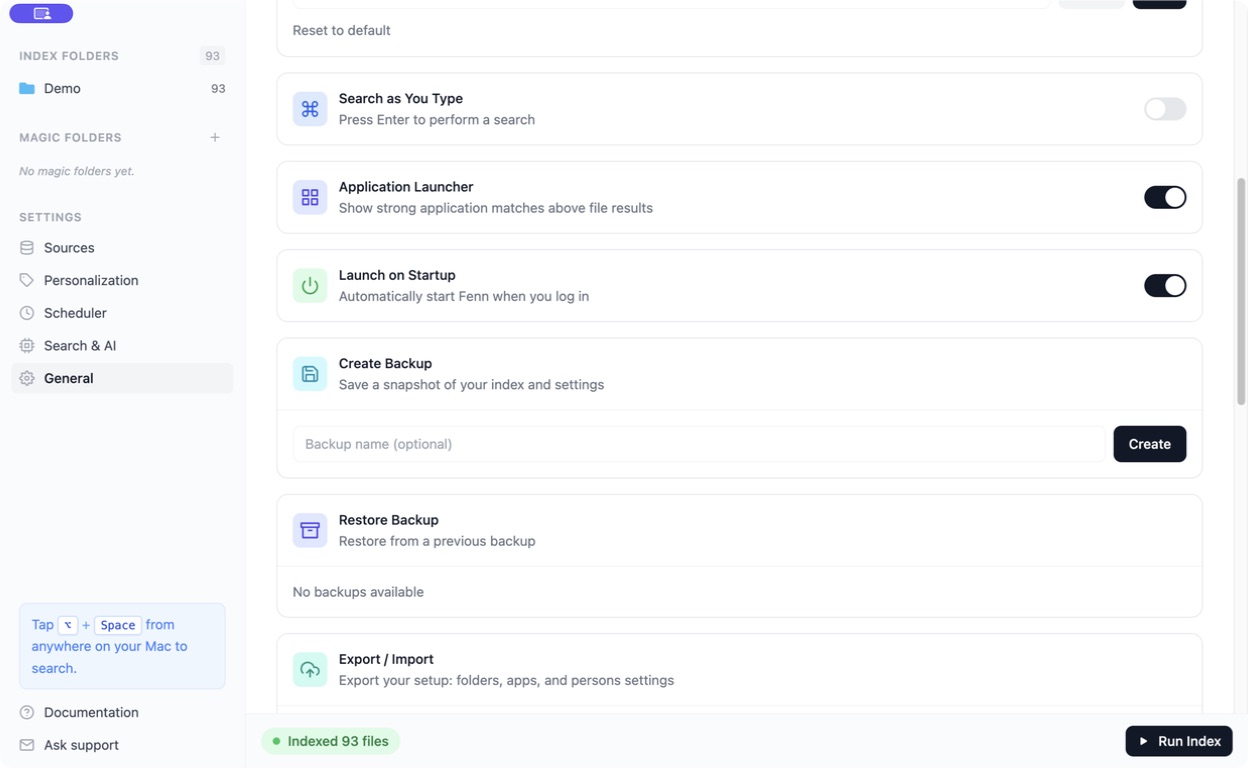
Section titled “Create a backup”- Open Settings → General → Create Backup.
- Add a name if useful, such as “Before reorganizing files”.
- Click Create and wait for completion.
- Check that the backup appears under Restore Backup.
Restore a backup
Section titled “Restore a backup”Choose the appropriate backup under Restore Backup, use its restore action, and read the confirmation. Restoring replaces the current Fenn state with the saved snapshot.
A backup stored on the same drive is not protection against losing that drive. Include your original files and Fenn data in your wider Mac backup routine.
Export settings
Section titled “Export settings”General → Export / Import → Export saves your setup, including folder, app, and person settings. Import lets you review which settings to bring back.
An exported configuration is not a copy of your indexed documents, downloaded models, or the complete search index.
Moving to another Mac
Section titled “Moving to another Mac”The simplest route is to transfer your original files, install Fenn, release the previous license activation, and index the folders on the new Mac.
If you want to preserve an existing index, file locations must remain compatible. A full Mac migration can help preserve them; moving files to different paths can require re-indexing.
For a manual data transfer, contact support with your current storage location before moving hidden app folders. This avoids confusing a settings export with a complete data migration.