
Find a person in your files
Find photos, documents, or video moments featuring someone you know, even when their name is not in the filename.
Add a person
Section titled “Add a person”- Open Settings → Sources → Persons.
- Click Add Person.
- Enter a Search ID, such as
@alex, and a description. - Add clear reference photos of the person’s face.
- Click Create and let Fenn finish any required processing.
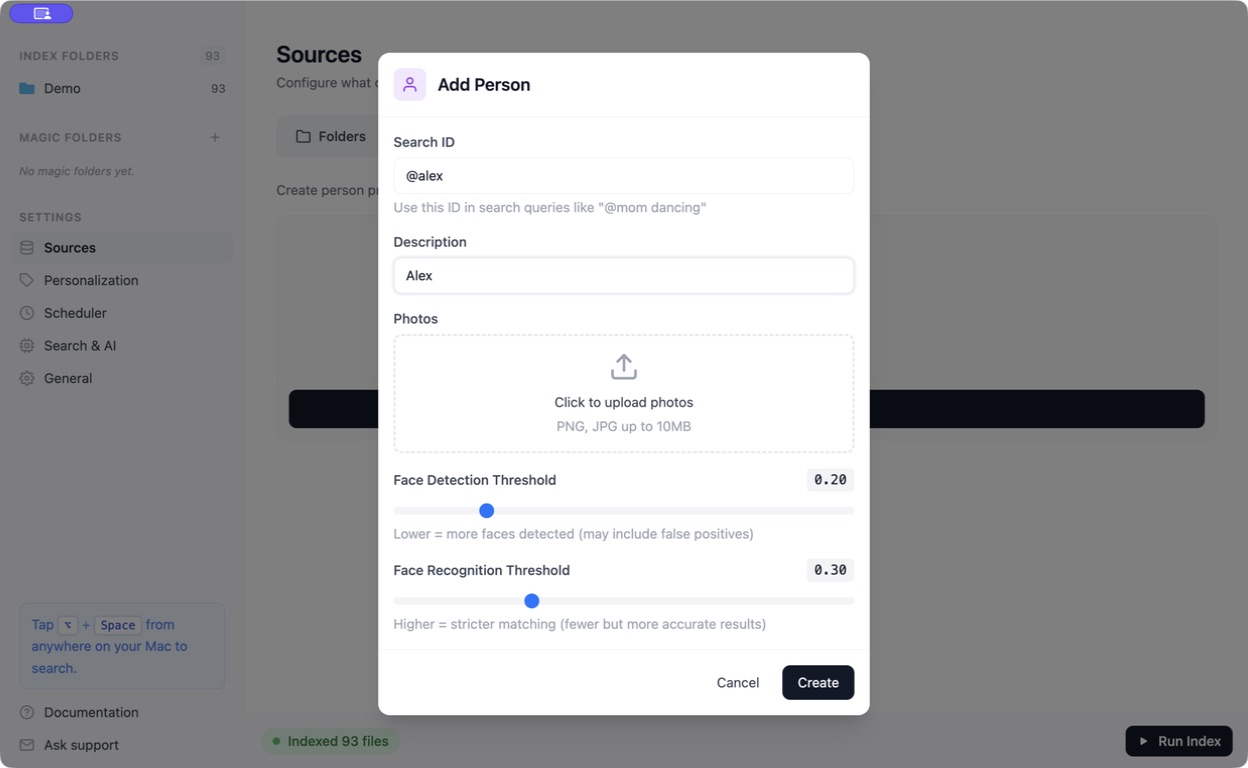
Leave the detection and recognition thresholds at their initial values to start. Higher recognition strictness gives fewer matches; unclear or very different reference photos can make matching harder.
Search for them
Section titled “Search for them”Open the search window, type @, and select the person from the suggestions. Add a short description if useful, such as @alex skiing.
Use Images or Videos to narrow the results. This is face-based search, so use All Files indexing and make sure the relevant files have been processed.
If there are no matches
Section titled “If there are no matches”Check that the profile contains usable photos and that the source files are indexed. Try the person alone before adding other words or filters. A small, turned-away, or obscured face may not match.
For a person’s name written inside a document, you can use Keyword or Exact search instead; a face profile is not required.