
Choose your indexing and AI models
There are two choices in Search & AI: how Fenn prepares your files, and which AI helps with questions and analysis.
Choose an indexing mode
Section titled “Choose an indexing mode”Open Settings → Search & AI → Indexing Mode.
| Mode | Choose it for |
|---|---|
| All Files | Visual content, scans, photos, video frames, and searches by meaning |
| Text-Optimized | A lighter index for text documents, code, notes, and email |
Text-Optimized is also called Fast Mode. It keeps Filename, Keyword, Exact, and Discover available, but does not provide Semantic or Hybrid search. Discover’s results adapt to the available modes.
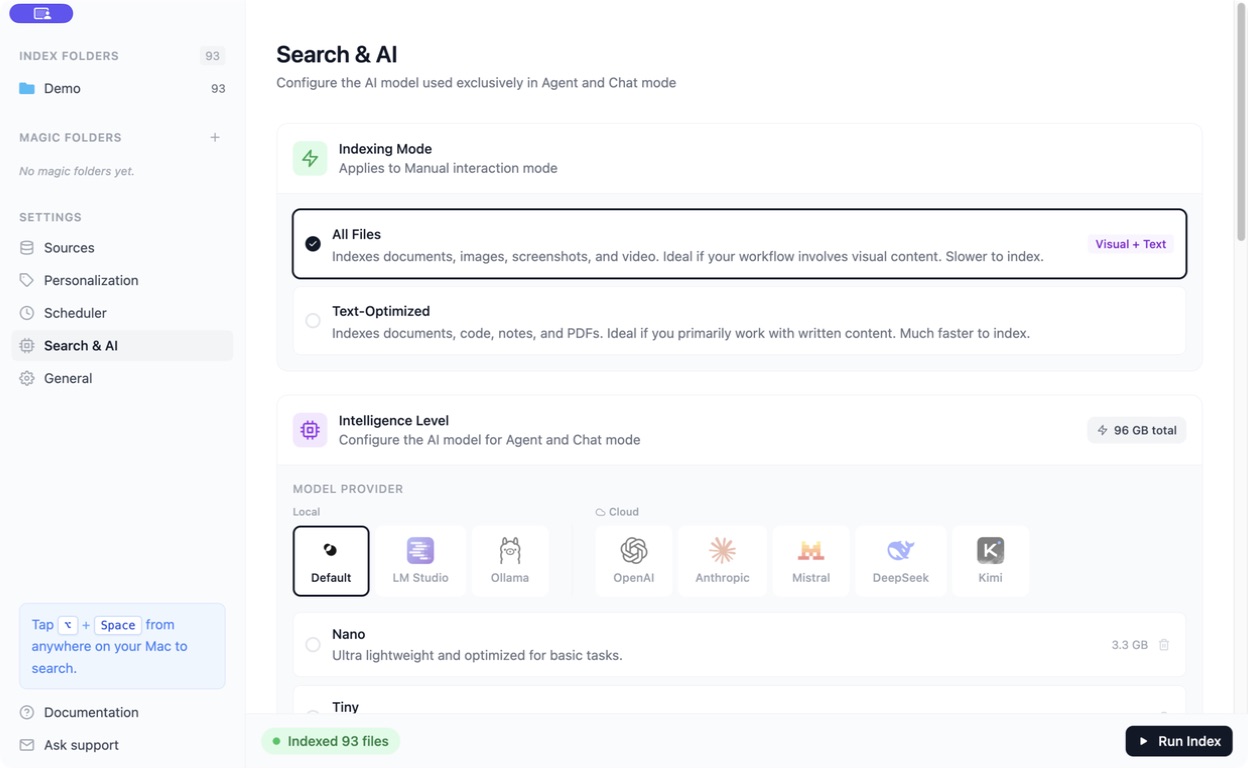
Changing the indexing mode means Fenn needs to prepare your files again. Read the confirmation and follow the app’s instructions.
Choose a model for Agent and Chat
Section titled “Choose a model for Agent and Chat”Under Intelligence Level, the Default provider uses local models on your Mac. Choose a model that fits the memory guidance shown in Fenn.
A smaller model uses fewer resources; a larger one may handle difficult analysis better but can be slower and use more memory. Bigger is not required for every task.
Scroll to Save Changes after changing the configuration. Allow any required model download to finish.
Optional providers
Section titled “Optional providers”You can configure a supported local provider, such as LM Studio or Ollama, or a cloud provider. These are optional; they are not needed to begin using Fenn.
Cloud providers require their own setup and may charge separately. Relevant questions and file context may leave your Mac. Read Local AI, cloud AI, and privacy before using one.