
Shortcuts and everyday settings
Make Fenn easy to reach, then adjust the small settings that fit your day.
Open and close search
Section titled “Open and close search”The default shortcut is Option + Space (⌥ Space). Use Command + W to close the search window.
To change the shortcut:
- Open Settings → General → Keyboard Shortcut.
- Click Record and press your preferred combination.
- Click Save.
- Test it from another app.
Use Reset to default if the new combination does not work. If another app uses the same shortcut, choose a different one.
Search as you type
Section titled “Search as you type”In General → Search as You Type, choose whether Fenn searches after you pause typing or waits for Return.
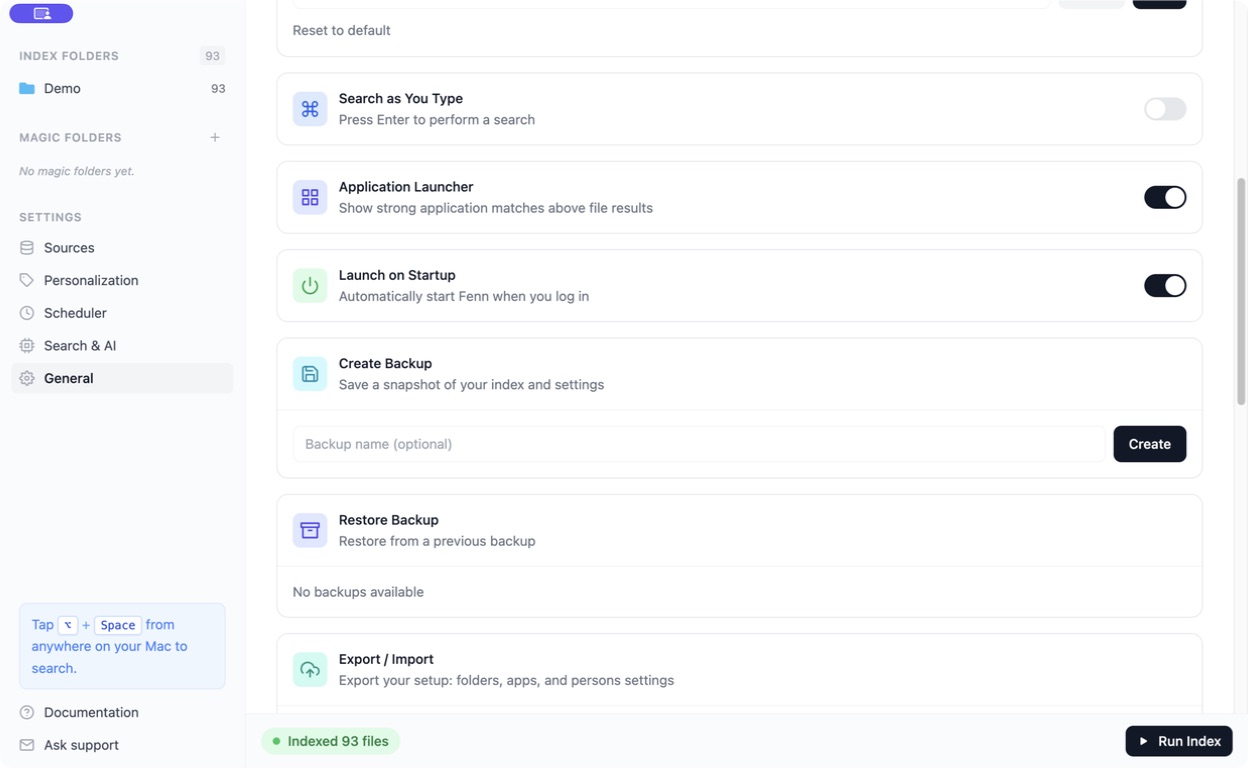
Application Launcher can show strong app matches above file results. Launch on Startup starts Fenn when you log in.
Change appearance
Section titled “Change appearance”Open General → Display and choose Light, Dark, or System.
The shortcut stops working
Section titled “The shortcut stops working”Check that Fenn is running. Open its main window and verify the saved shortcut. If needed, use General → Restart Application, then try again.
Restart Application keeps your data. Reset Application deletes Fenn data and settings and returns to setup; it is not the routine fix for a shortcut problem.