
Narrow your search results
A few words plus the right filter are often enough. Start broad, then narrow the results you see.
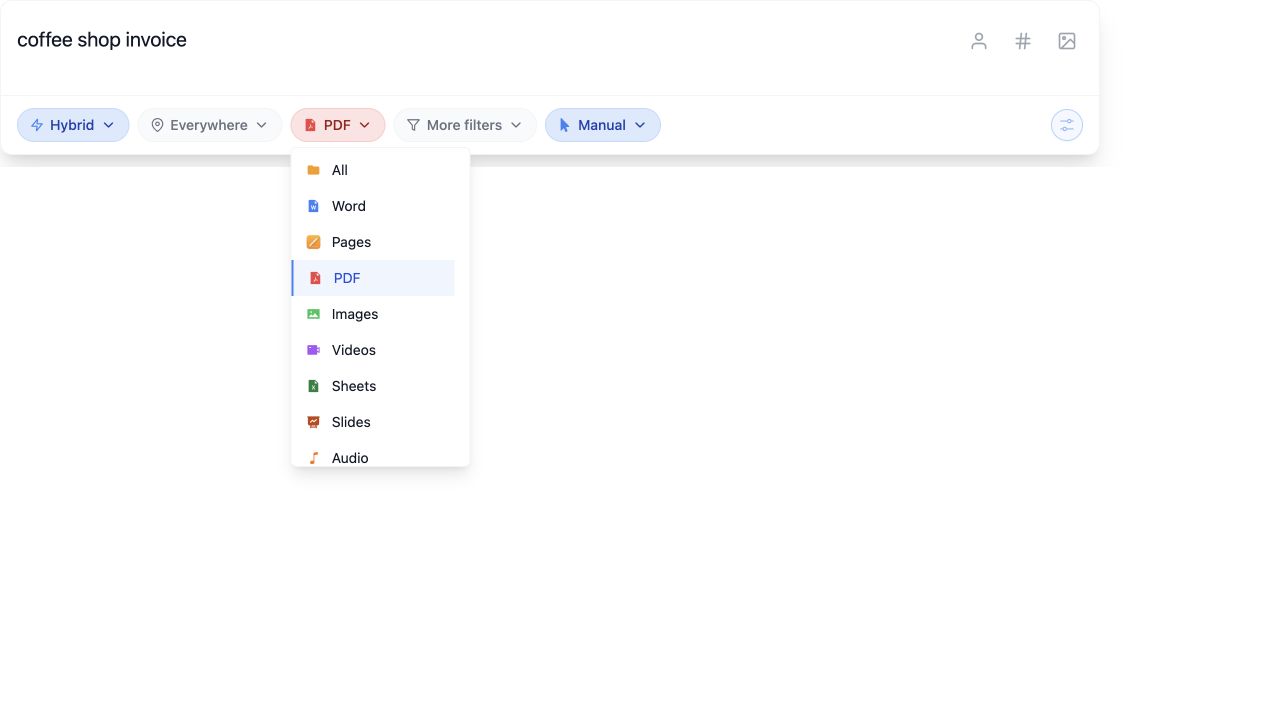
Use the controls below the search box
Section titled “Use the controls below the search box”- Choose a search mode.
- Use Everywhere to choose the location or source.
- Use All to choose a file type.
- Open More filters for additional restrictions, such as dates and filename text.
Three examples
Section titled “Three examples”- A photo: Semantic →
elephant→ Images. - A trip document: Semantic →
planning a summer trip→ PDF or Word. - A video frame: Semantic →
N261FC→ Videos. See the real example.
There is no need to add “a photo of” or “a document about” to the query.
If too many results appear
Section titled “If too many results appear”Choose a folder you recognize or add a more distinctive word. In More filters, use Filename contains or Filename does not contain if part of the name helps you include or exclude files.
A filename filter narrows a content search; it does not change your query into a filename-only search.
If results disappear
Section titled “If results disappear”Filters work together. A date, location, or file type left from an earlier search can hide the file you want.
Return to Everywhere and All, clear extra filters, then search again. More results can broaden the displayed result set, but it cannot include content that has not been indexed.