
Choose a search mode
You remember the file, but not where you saved it. Maybe it was an invoice, a phrase in a document, or a photo you can picture. Start with that — Fenn gives you a few ways to look.
Choose Discover, type what you remember, and press Return. You can narrow things down once you see the results.
Choose and run a search
Section titled “Choose and run a search”- Open Fenn’s search window. The default Mac shortcut is Option + Space (⌥ Space). If you’ve changed it, use your own shortcut.
- Click the mode button below the search box. It shows the current mode, such as Discover or Hybrid. Choose an option from the menu.
- Type what you remember and press Return. A few useful words are enough. For example, try
coffee shop invoice.
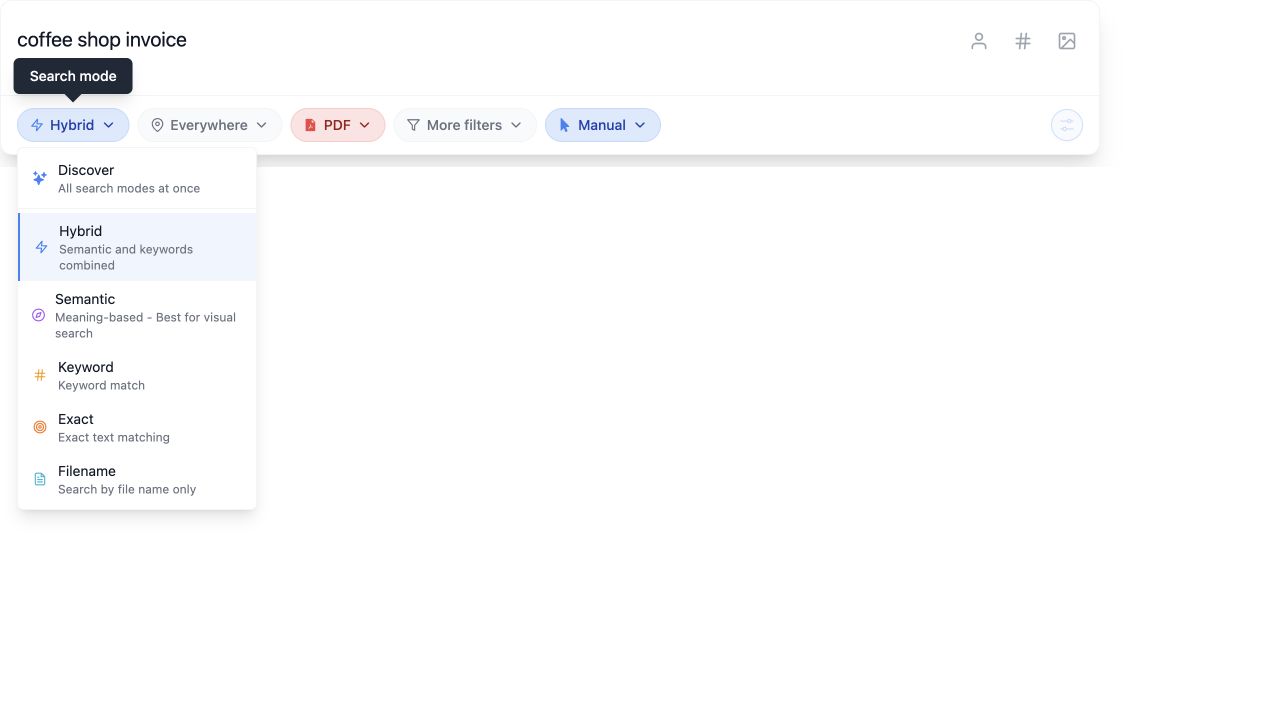
Fenn remembers your mode for next time. If you change modes while there’s already text in the search box, Fenn runs that search again with the new mode.
Pick the mode that fits your memory
Section titled “Pick the mode that fits your memory”You don’t need to learn all six. Use the one that matches the clue you have.
Discover — “I’m not sure where to start”
Section titled “Discover — “I’m not sure where to start””Try a name, a topic, or a short description. Discover looks for several kinds of matches and puts them in separate groups:
- Exact match: your phrase appears in the searchable text.
- Matching filenames: the file’s name matches your search.
- Mentioned in: the file contains your search terms.
- Matches by meaning: the content is related to your description, including visual content.
Only groups with results appear. If one group looks promising, click its Search with … only button to keep exploring that kind of match.
Filename — “I remember part of the name”
Section titled “Filename — “I remember part of the name””Search the name of the file. You don’t need its full name or extension: holiday-budget is a useful starting point for a file named holiday-budget-2026.xlsx.
If you remember something written inside the file instead, try Keyword or Exact.
Keyword — “I remember a few words inside it”
Section titled “Keyword — “I remember a few words inside it””Use distinctive words such as delivery address or coffee invoice. Keyword searches the text Fenn has prepared from your files; the words don’t have to form one exact phrase.
A company name, an unusual term, or a product name is usually more useful than a broad word like document.
Exact — “I remember the precise wording”
Section titled “Exact — “I remember the precise wording””Use a phrase or reference such as payment due within 30 days or ACME-48291. Enter the text directly — you don’t need to add quotation marks.
Exact looks for that text together, in that order. Capital letters don’t matter, but different wording or spacing can prevent a match. If you’re unsure of the wording, switch to Keyword.
Semantic — “I remember what it was about or looked like”
Section titled “Semantic — “I remember what it was about or looked like””Type the subject or idea you remember, then use a file type filter:
- To find a photo of an elephant, search
elephantand choose Images. - To find a document about a summer trip, search
planning a summer tripand choose the type you need, such as PDF or Word.
Semantic can find related content even when your words aren’t in the filename.
Use Semantic + a file type filter instead of adding “a photo of” or “a document about” to your search. It’s a simpler, faster way to focus on what you need: type the subject, then choose the kind of file.
For requests that need analysis, such as checking which invoices have an amount above a given value, use the Agent interaction mode. Semantic is useful for finding related content; Agent can examine it against your criteria.
Hybrid — “I remember the topic and a few words”
Section titled “Hybrid — “I remember the topic and a few words””Hybrid combines meaning and keyword matches in one result list. Try coffee shop invoice when you remember the kind of document and some likely words, but not its exact title.
Narrow the results with filters
Section titled “Narrow the results with filters”Start broadly, then add a filter when you know something about the file. The buttons beside the search mode let you choose where to look and what kind of file to include.
For example, if your coffee shop invoice was a PDF:
- Open the file type button. It shows All when no type is selected, or the type you last chose.
- Choose PDF. If another type is selected, click it to deselect it so only PDF remains.
- Click the search box, then press Return to run the search with that filter.
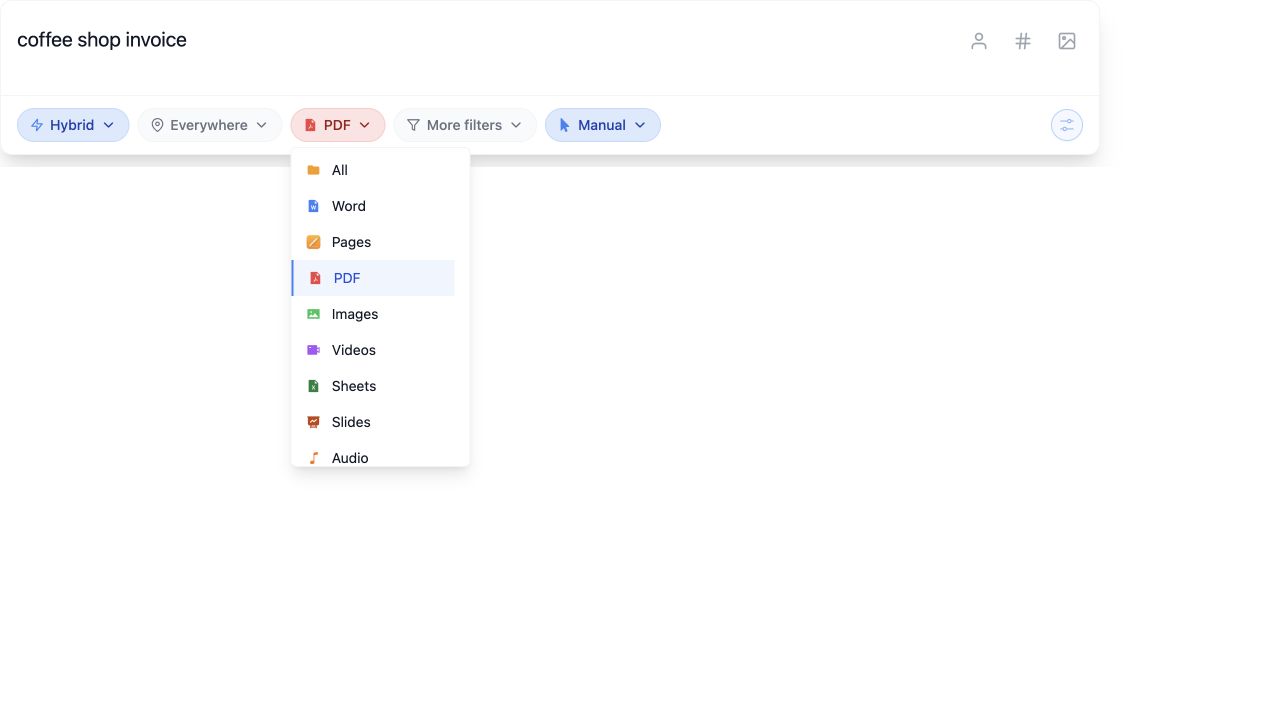
You can also use Everywhere to choose a folder, or More filters to narrow by date or by words in the filename. Everywhere means the folders Fenn has indexed, rather than every file on your Mac.
If the results aren’t what you expected
Section titled “If the results aren’t what you expected”Nothing appears: choose Everywhere and All, then check More filters for a date or filename restriction. Try fewer words and press Return again. If you were using Exact, try Keyword or Discover.
Too many results appear: add one distinctive detail, or select a folder or file type. In Discover, use a group’s Search with … only button to focus on its matches.
The file is still missing: follow A file is missing to check that its folder has been added and Fenn has finished preparing it for search.
A few things you might wonder
Section titled “A few things you might wonder”Why don’t I see Semantic or Hybrid?
Section titled “Why don’t I see Semantic or Hybrid?”These modes are hidden when you use Text-Optimized indexing (also called Fast Mode). Filename, Keyword, Exact, and Discover remain available; Discover won’t include matches by meaning.
For visual and meaning-based search, check the indexing model under Search & AI. All Files supports those searches. Changing the model requires Fenn to prepare your files again before the new search capabilities are ready.
Why is the mode button unavailable?
Section titled “Why is the mode button unavailable?”This guide uses Manual search. In Agent search with automatic filters, Fenn chooses the search settings for you. Switch back to Manual to choose the modes yourself. Discover is available in Manual search.
Does Exact work for spoken words in audio or video?
Section titled “Does Exact work for spoken words in audio or video?”Use Keyword for words in an audio or video transcript. Exact search excludes audio and video files. The recording must already have been processed with transcription available.
Do I always have to press Return?
Section titled “Do I always have to press Return?”Pressing Return runs your search. To have Fenn search as you enter your words, go to Settings → General and enable Search as you type. After changing filters, pressing Return is a simple way to make sure you’re looking at fresh results.
Search for it by part of its name with Filename, then try describing it with Semantic if available. Seeing the same familiar file appear in different ways makes the modes easier to get comfortable with.