
Chat with your files
Bring the relevant files into a conversation, then ask for the answer you need.
Start with a file
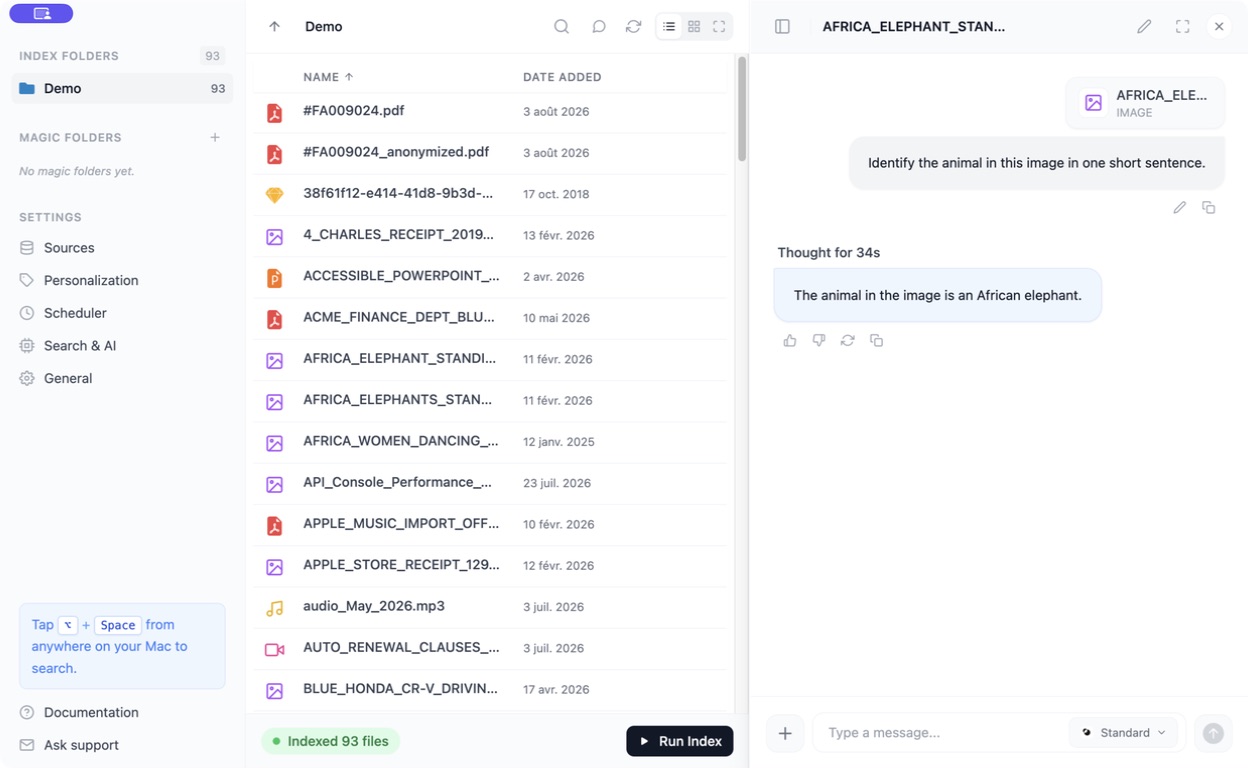
Section titled “Start with a file”- Find the file in search or browse to it in Fenn’s main window.
- Use its Chat with file button.
- Check the file shown in the chat context.
- Ask a specific question, such as “What is the renewal notice period in this contract?”
You can also use Open Chat in the main window to open the side panel while browsing.
Work with several files
Section titled “Work with several files”Select the relevant files and use the chat action offered for the selection. Check which files are attached before asking a question.
Try:
- “Compare the renewal terms in these two contracts.”
- “Summarize the decisions and action items from these meeting notes.”
- “List the supplier, date, and total from these invoices.”
For a spreadsheet-ready export, use Extract Data.
Add context
Section titled “Add context”Use the chat’s file or folder attachment controls to include more material. Keep the scope focused; a whole archive takes longer to read than a few relevant documents.
If you set up Custom Topics, mention a topic with # to help Fenn choose its associated files.
Ask follow-ups in the same conversation, for example: “Which paragraph says that?” Open the referenced source to check the answer.
If the answer is incomplete
Section titled “If the answer is incomplete”Make sure the needed file is in the context and readable. Ask a narrower question or work with fewer files. A long document or difficult scan may need a more capable model.
Agent and Chat use the model configured under Settings → Search & AI → Intelligence Level. A cloud provider can receive the relevant file context; local models keep the analysis on your Mac.