
Create a Magic Folder
A Magic Folder gathers matching files into one view. Your originals stay where they are.
Create your first folder
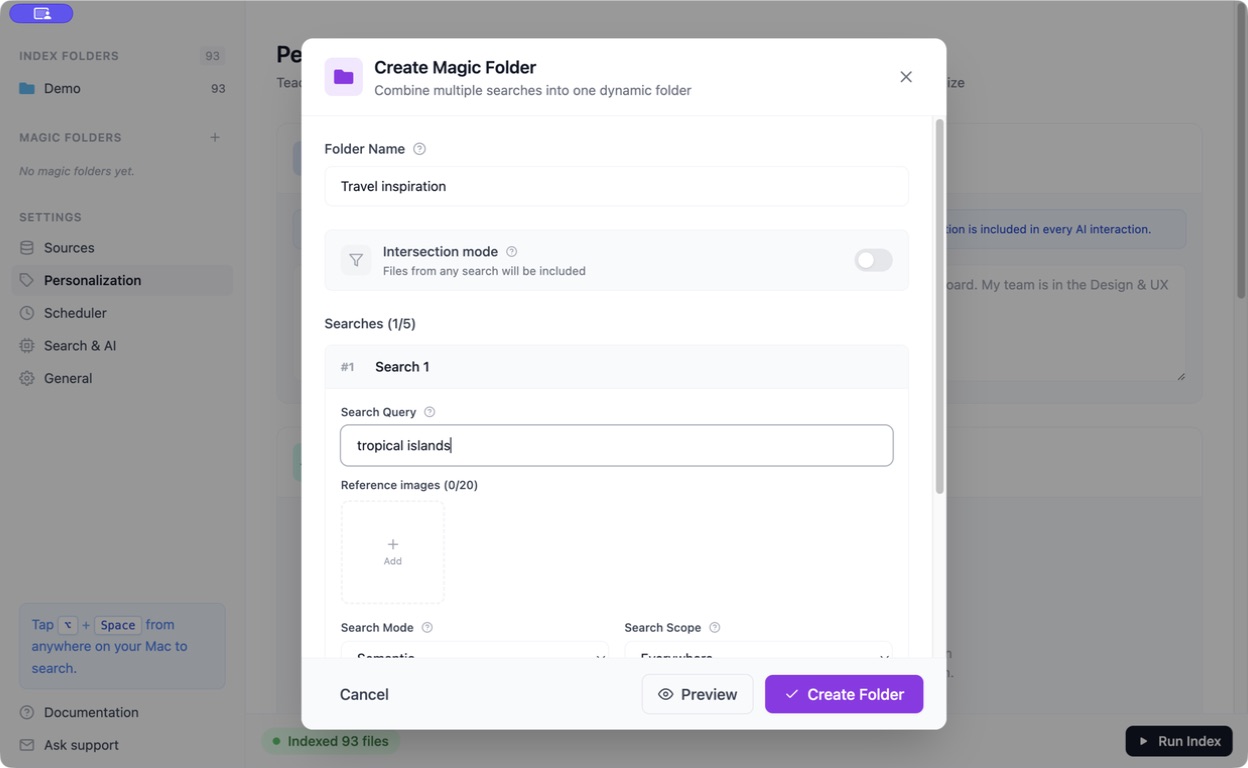
Section titled “Create your first folder”- In the main window, click + beside Magic Folders.
- Give it a name, such as Travel inspiration.
- Add a search, such as
tropical islandsin Semantic mode. - Choose the scope and use Advanced options for file types and other filters.
- Click Preview to check the matches, then Create Folder.
Open it from the sidebar whenever you need those files. Newly added content must be indexed before it can appear.
Combine searches
Section titled “Combine searches”Add another search when one description is not enough. The form supports up to five searches.
Normally, files matching any search are included. Turn on Intersection mode when a file must match all of them.
Use ordinary search clues here. For conditions that require analysis, such as invoice amounts, use Agent.
Optional: show the collection in Finder
Section titled “Optional: show the collection in Finder”Sync to Folder creates links to matching files in a destination folder on your Mac. Choose a destination and an auto-refresh interval; use Sync Now when available to refresh it manually.
These are links to originals, not independent backup copies. Keep the originals accessible.
Change or remove the collection
Section titled “Change or remove the collection”Use the Magic Folder’s sidebar menu to edit its searches or remove the saved collection. Removing the Magic Folder is different from deleting files inside it.