
Send captures from your iPhone
Capture a receipt, whiteboard, or voice note on your iPhone, then find it later in Fenn on your Mac.
Pair your devices
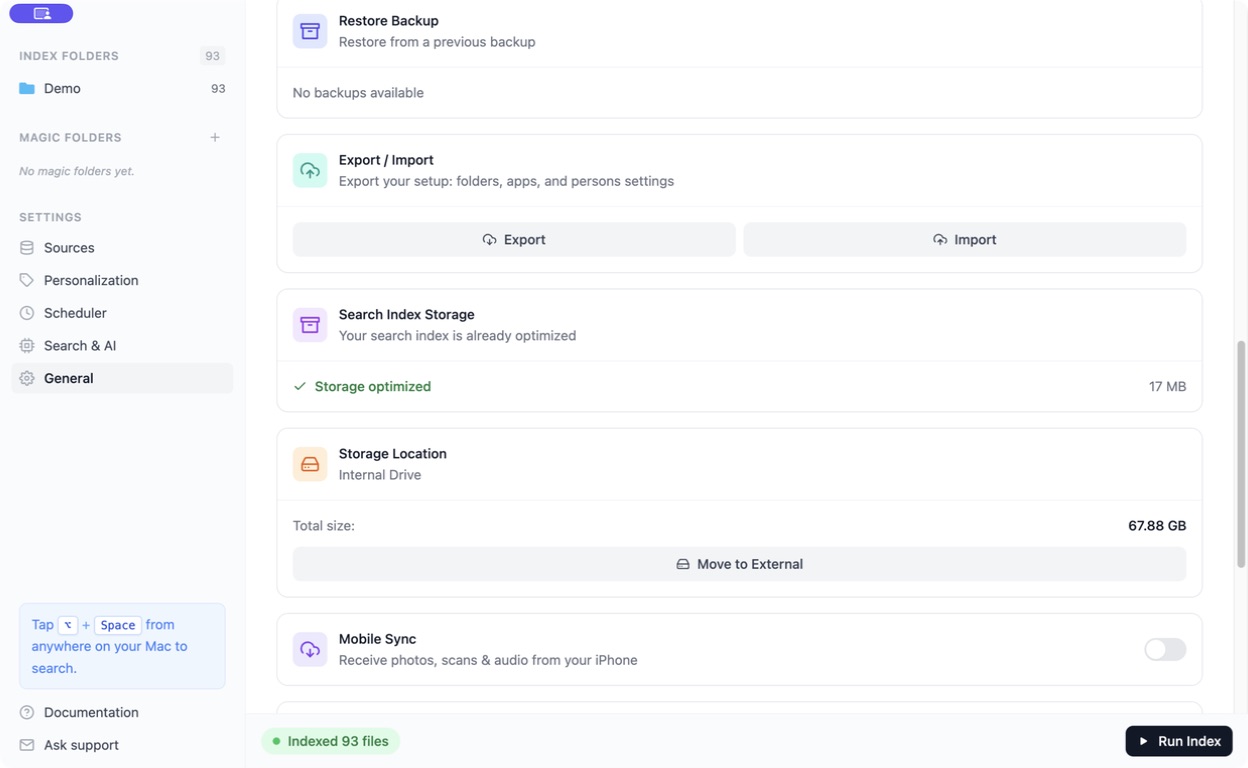
Section titled “Pair your devices”- Open Fenn → Settings → General → Mobile Sync on your Mac.
- Turn on Mobile Sync.
- Open Fenn Capture on your iPhone.
- Follow its pairing flow and scan the QR code displayed by Fenn on your Mac.
Use the Get Fenn Capture on your iPhone link in the Mac app to find the companion app.
Keep the Mac and iPhone on the same local network, with Fenn running on your Mac.
Capture and find
Section titled “Capture and find”Take a photo, scan a document, or record audio in Fenn Capture, then send it to the paired Mac.
Received files appear in Fenn’s capture inbox and are prepared for search. Wait for processing before looking for content inside a new capture.
Try a distinctive word from a receipt with Semantic, or words from an audio transcript with Keyword when transcription is available.
If a capture does not arrive
Section titled “If a capture does not arrive”Check that both devices are on the same network, the Mac is awake, and Mobile Sync is enabled. Follow any local-network permission prompt on the iPhone.
Return to the pairing screen and refresh its QR code if the connection needs to be set up again. Guest or isolated networks may prevent devices from reaching each other.