
Let Agent check your files
Use Agent when finding the right files requires reading and checking them. For example: which invoices have a total above €1,000?
Run an Agent search
Section titled “Run an Agent search”- Open Fenn’s search window.
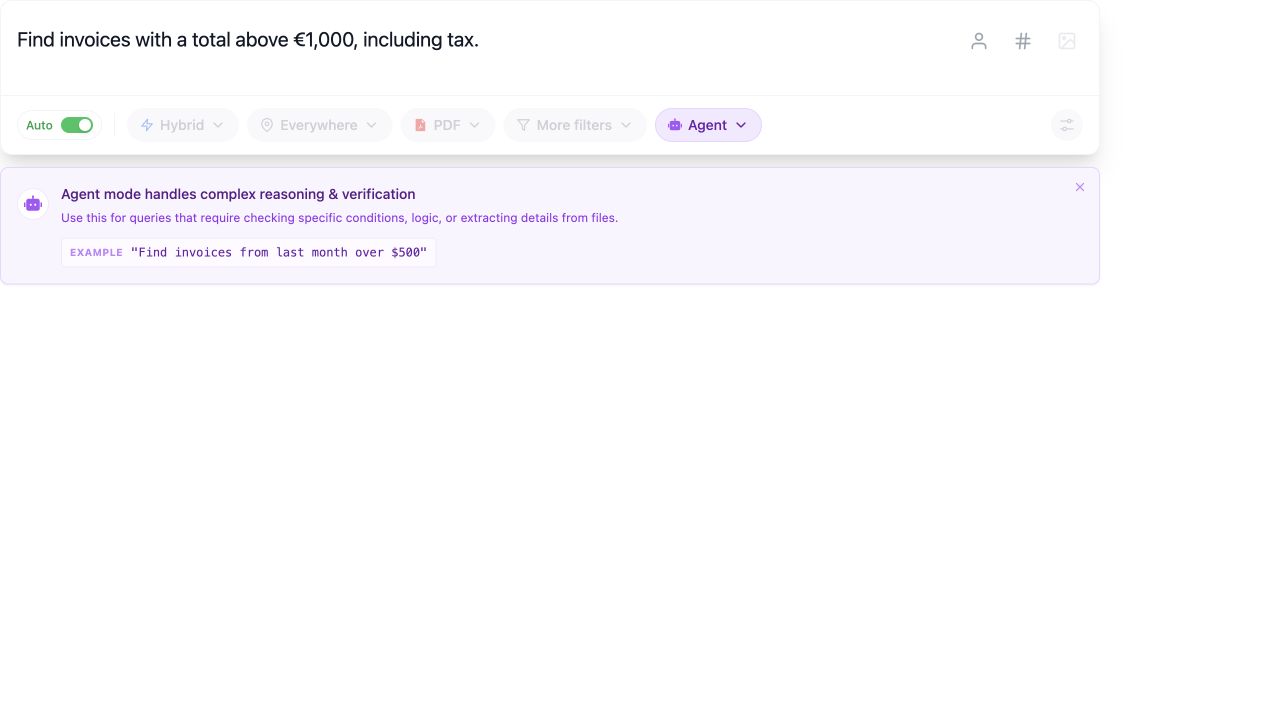
- Click Manual below the search box and choose Agent.
- Write the condition clearly: “Find invoices with a total above €1,000, including tax.”
- Press Return and follow the progress.
- Open the returned files to review the evidence.
Agent looks for likely files and checks them against your request. This takes longer than an everyday search.
Give it a clear task
Section titled “Give it a clear task”Useful examples include:
- “Find restaurant receipts with a total above $400.”
- “Find contracts with automatic renewal and a notice period of 30 days or less.”
- “Find invoices dated in June 2026 with a total above €1,000.”
Say which amount, date, or condition matters. “Total including tax” is more useful than “large invoice.”
For a simple topic or image, use Manual → Semantic and a file type filter instead.
Auto or your own filters?
Section titled “Auto or your own filters?”With Auto enabled, Agent chooses search settings for the task. Start here if you are unsure where to look.
Turn Auto off when you know the folder or file type. A smaller, relevant set of files usually takes less time to check.
If it takes too long
Section titled “If it takes too long”Narrow the folder, reduce the number of files, or simplify the condition. Check the model and execution timeout in Settings → Search & AI.
Agent uses the configured AI provider. Default runs locally; an optional cloud provider can receive relevant context. Review model and privacy settings.
An AI result is a useful starting point, not proof that every matching file has been found. Check the originals before relying on amounts, dates, or conclusions.