
Choose folders and file types
Choose the parts of your Mac you want Fenn to search. You can start with one folder and expand later.
Add a folder
Section titled “Add a folder”- Open Settings → Sources → Folders.
- Select Index, then Add index folder.
- Choose the folder and confirm.
- Use Run Index → Index new files to prepare newly included files. On the first run, Run Index starts preparation directly.
Files stay in their original folders. Keep external drives connected when indexing or opening their files.
Choose what is included
Section titled “Choose what is included”Open Sources → File Types. Select the categories and extensions you use. Limits such as page ranges or media duration can leave some content out.
Click Save Changes, then Confirm & Save if you changed the selection.
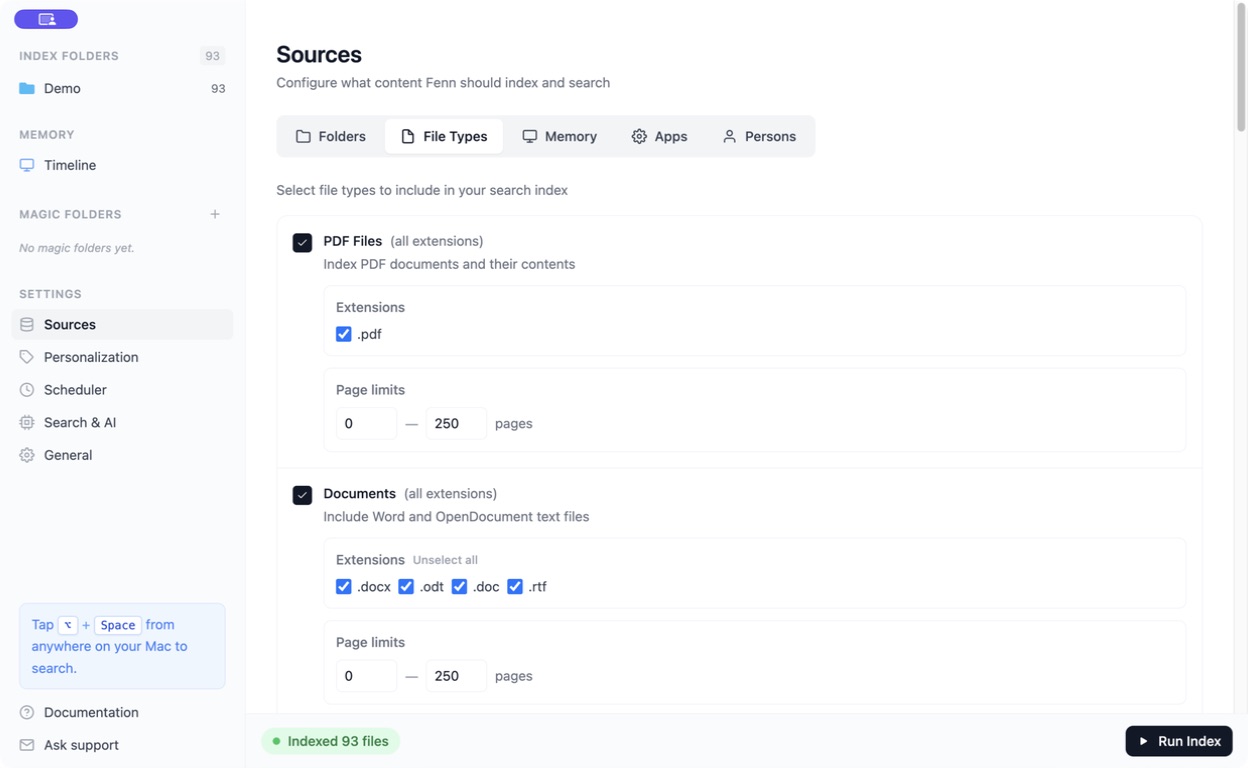
For a folder that needs different options, return to Folders → Index and click its Configure file types button. Set the folder’s choices and save.
Priority and excluded folders
Section titled “Priority and excluded folders”- Priority: choose folders you want Fenn to process first.
- Excluded: leave particular folders out, including a subfolder inside an indexed folder.
Adding an exclusion or removing a file type affects what can appear in search. It does not delete the original files.
Remove a source
Section titled “Remove a source”Use Remove folder beside the folder and read the confirmation before applying it. This removes the source from Fenn; it is different from deleting the folder in Finder.