
Extract data to a spreadsheet
Turn a folder of receipts, documents, or images into a table you can review in Numbers or Excel.
Define the table
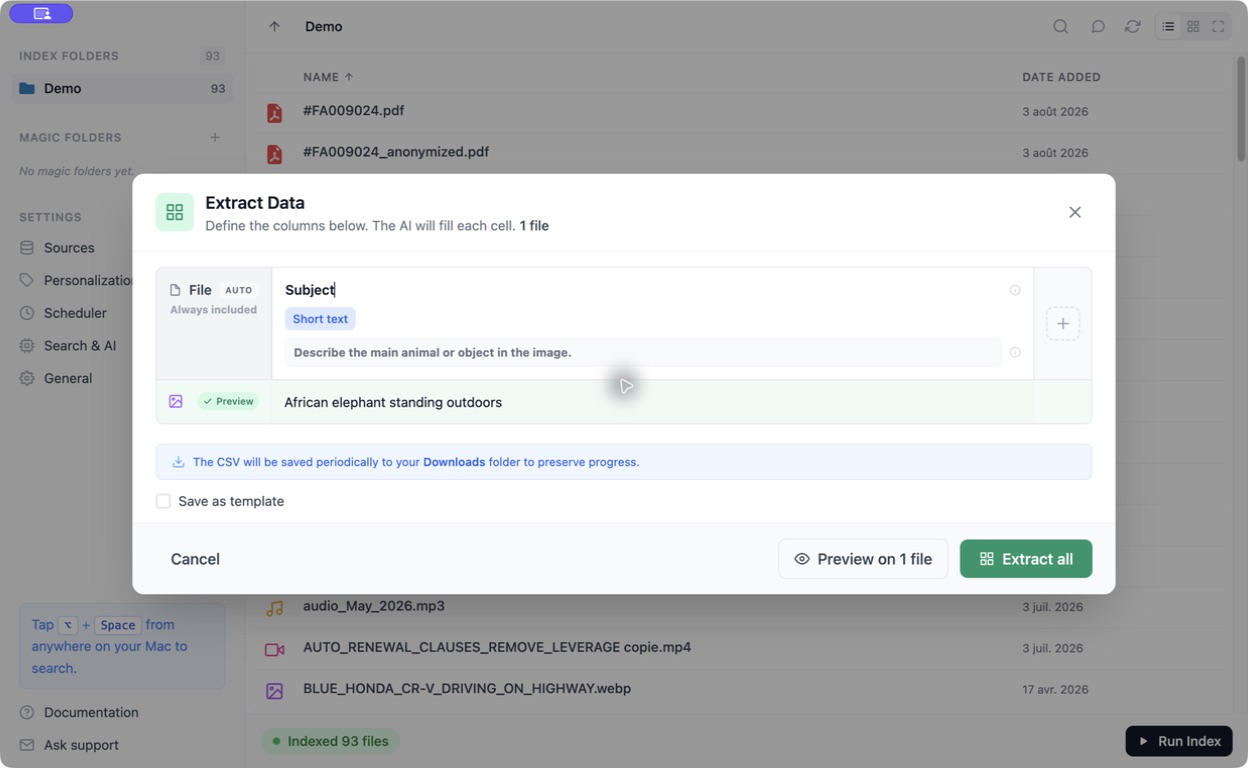
Section titled “Define the table”- In Fenn’s main window, select one or more files.
- Click Extract Data. You can also use the file’s extraction button or the folder’s context menu.
- Name each column and choose its data type.
- Add a short description explaining what should go in that column.
For invoices, start with Supplier, Invoice date, Total including tax, and Currency. A precise description helps Fenn distinguish the total from a subtotal.
Preview before processing everything
Section titled “Preview before processing everything”Click Preview on 1 file. Check that the values answer your question and that the column types are appropriate.
If a value is wrong, clarify its description and preview again. Use Save as template when you want to reuse the same columns.
Extract and export
Section titled “Extract and export”Click Extract all when the preview is useful. Follow the progress, then use Export CSV to save the results.
Fenn also saves CSV progress to your Downloads folder during extraction. Open the CSV in Numbers, Excel, or another spreadsheet app.
Review the extracted values against the original files, especially totals, dates, and unclear scans. A blank or uncertain value should be checked, not assumed to mean zero.
Keep it simple
Section titled “Keep it simple”Start with a small batch of similar files and a few columns. Add detail only when you need it.
Extraction uses your configured AI model. Check local or cloud processing before extracting private content.