
Manage storage and external drives
Fenn uses space for its models, index, and other local data. Check the actual usage in the app before deciding what to change.
Check storage
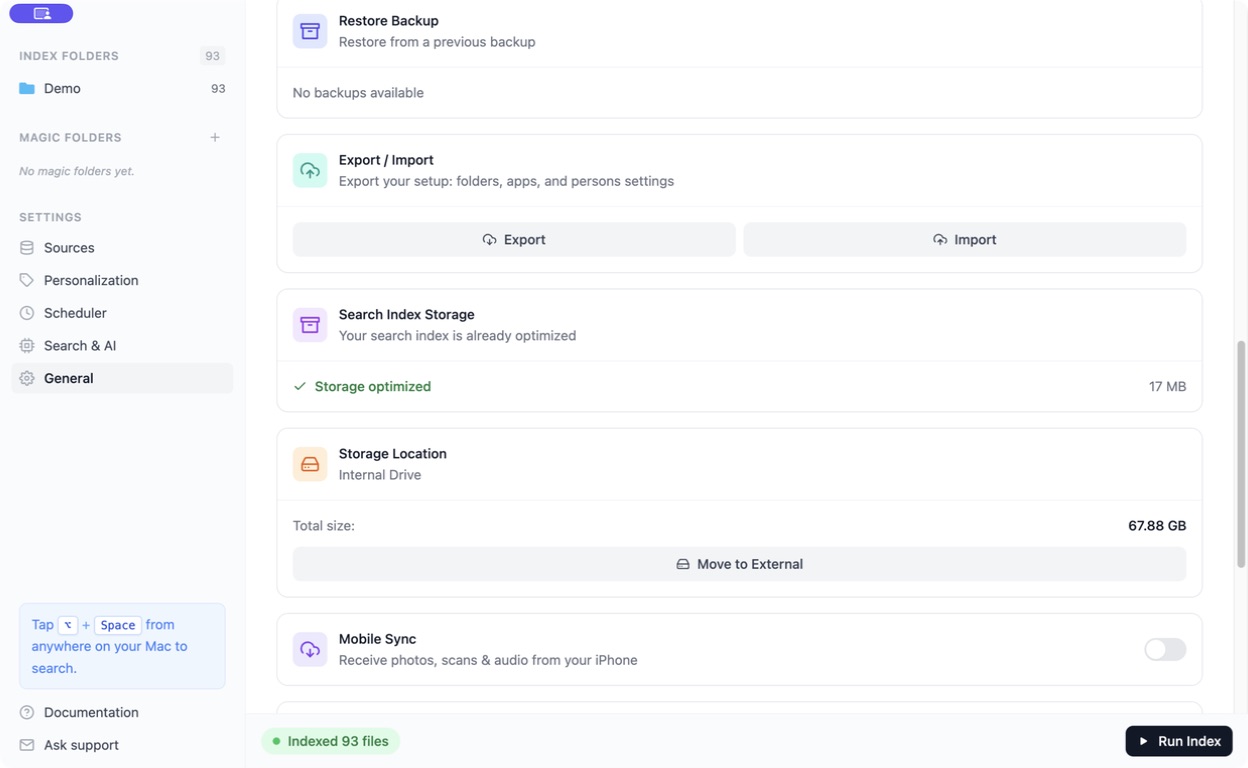
Section titled “Check storage”Open Settings → General.
- Search Index Storage shows the index’s size and optimization state when available.
- Storage Location shows the location and total size of Fenn’s managed data.
Free up index space
Section titled “Free up index space”If Fenn offers Free Up About…, open it to review the estimated saving and temporary space required.
Follow the proposed option and keep any requested drive connected until completion. If interrupted, check the status and use the offered Resume Optimization action.
Optimization does not require your original files to be indexed again. It may be unavailable while another indexing operation is running.
Move data to an external drive
Section titled “Move data to an external drive”- Wait for indexing to finish.
- Open General → Storage Location → Move to External.
- Choose the drive and follow the confirmation.
- Keep the drive connected until the transfer completes.
Fenn needs that drive connected to access its moved data. A slow drive can also slow Fenn down.
Use Restore to Internal to move back when there is enough room, or Move to Different Drive to change external drives.
If the drive is missing
Section titled “If the drive is missing”Reconnect the same drive and wait for it to appear in Finder. Then return to Fenn. Do not reset the app simply because its data drive is temporarily unplugged.