
Search your notes and app content
Bring notes into the same search as your files, so you can find a project detail without remembering which app holds it.
Connect an app
Section titled “Connect an app”- Open Settings → Sources → Apps.
- Select the app you use from the list.
- Check its Notes limit, if shown.
- Click Save Changes.
- Run Index new files and wait for preparation to finish.
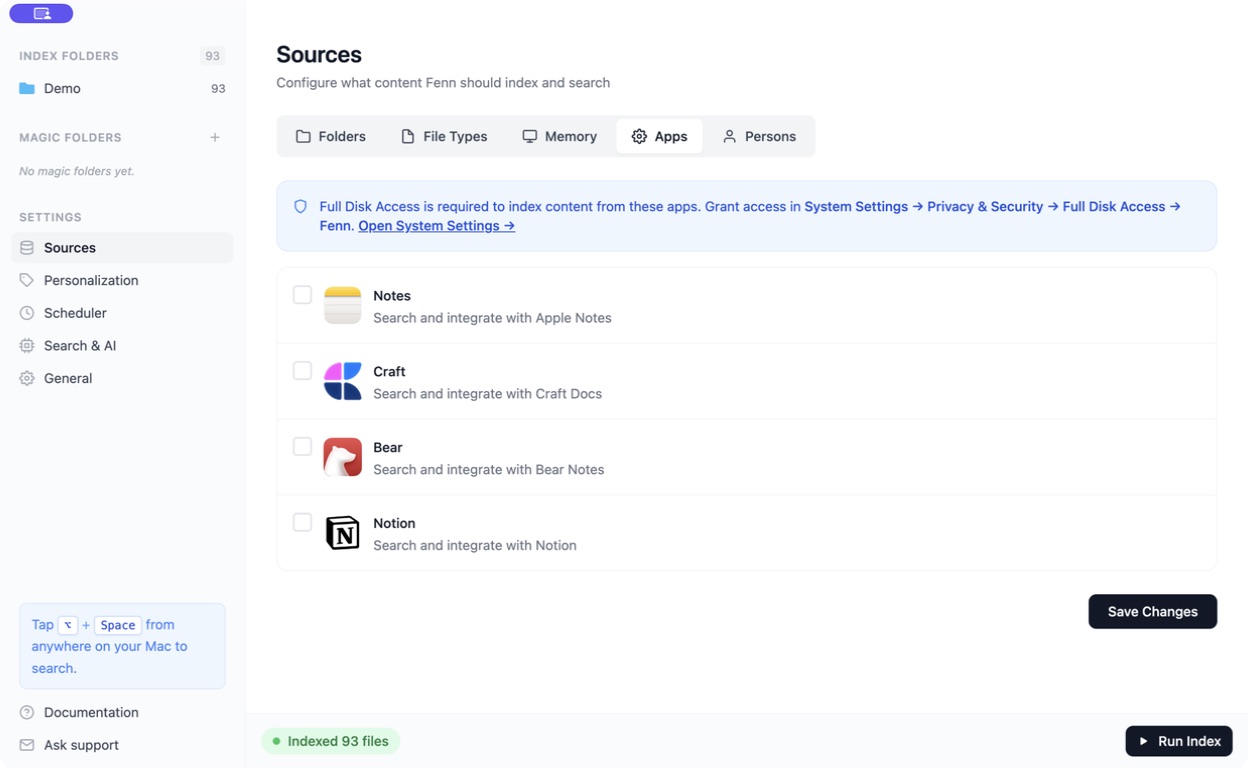
Keep the source app installed and signed in. Make sure the notes you want are available on this Mac; Fenn cannot search content it has not been able to read.
Allow access on your Mac
Section titled “Allow access on your Mac”The Apps screen provides a link to System Settings → Privacy & Security → Full Disk Access. Enable Fenn there when required, then quit and reopen Fenn.
If opening a note requests permission to control the note app, allow the relevant Automation permission. Reading a note and opening it in its app can require different permissions.
Search and open a note
Section titled “Search and open a note”Try a few words from the note in Keyword, or use Semantic for its topic when available. Use the source or file type filters to narrow the results.
Click a result to open it in the source app.
A note is missing or the wrong note opens
Section titled “A note is missing or the wrong note opens”Check the selected app, the notes limit, local sync, and permissions, then run another index update. If it still fails, contact support with the source app name and what happened.