
Find your first file
You remember a detail in a video, but not which video it was. Fenn can help you find it. In this walkthrough, we’ll search for the registration written on a plane and open the moment where it appears.
Open Fenn on your Mac and finish the initial setup. For this example, use All Files indexing under Settings → Search & AI, with videos included in your sources. If you’ve already prepared your videos this way, skip ahead to Run your first search.
Add a folder to Fenn
Section titled “Add a folder to Fenn”Fenn searches the folders you choose. Adding a folder tells it where to look; your files stay in their original location.
- In Fenn’s main window, click Sources under Settings in the left sidebar.
- Open Folders, then select Index.
- Click Add index folder.
- Choose your folder in the Mac folder picker and confirm your selection.
The folder now appears in the Index list. You can add more later. For this first search, one familiar folder makes it easier to check that you’ve found the right file.
Check which file types are included
Section titled “Check which file types are included”In Sources → File Types, scroll to the video options and check that videos and your video’s extension are selected. You can also include other types, such as PDFs, Word documents, and images.
If everything you need is already selected, leave it as it is. If you change a selection, scroll to Save Changes, then review the message and click Confirm & Save. Deselecting a type removes those files from Fenn’s search index; it does not delete the original files.
For visual search inside videos, check that All Files is selected in Settings → Search & AI. Text-Optimized indexing does not provide Semantic search. If you change the indexing model, follow Fenn’s prompts to prepare your files again.
Let Fenn prepare your files
Section titled “Let Fenn prepare your files”This preparation is called indexing. It creates the information Fenn uses to find your files, including searchable content for supported file types.
- Click Run Index at the bottom right of the main window.
- If a menu appears because you’ve indexed files before, choose Index new files to include the files from your newly added folder.
- Keep Fenn running and wait for indexing to finish. The status at the bottom of the window shows its progress and, when finished, the number of indexed files.
The time needed depends on the number and kind of files, and on your Mac. For this walkthrough, wait until preparation has finished before searching.
Run your first search
Section titled “Run your first search”Imagine you remember seeing N261FC written on a plane in a video. You don’t remember the video’s name or when the plane appeared. That visible detail is enough to start a search.
- Open the search window. Press Option + Space (⌥ Space), the default shortcut. If you’ve changed it, use your own shortcut.
- Choose Semantic. Click the first button below the search box, which shows the current search mode, then choose Semantic.
- Choose where to look. Leave the location on Everywhere. The example below uses All file types; if you know you’re looking for a video, select Videos from the file type menu to narrow the search.
- Type the detail you remember and press Return. Here, we use
N261FC— just the registration, without “a video of a plane”.
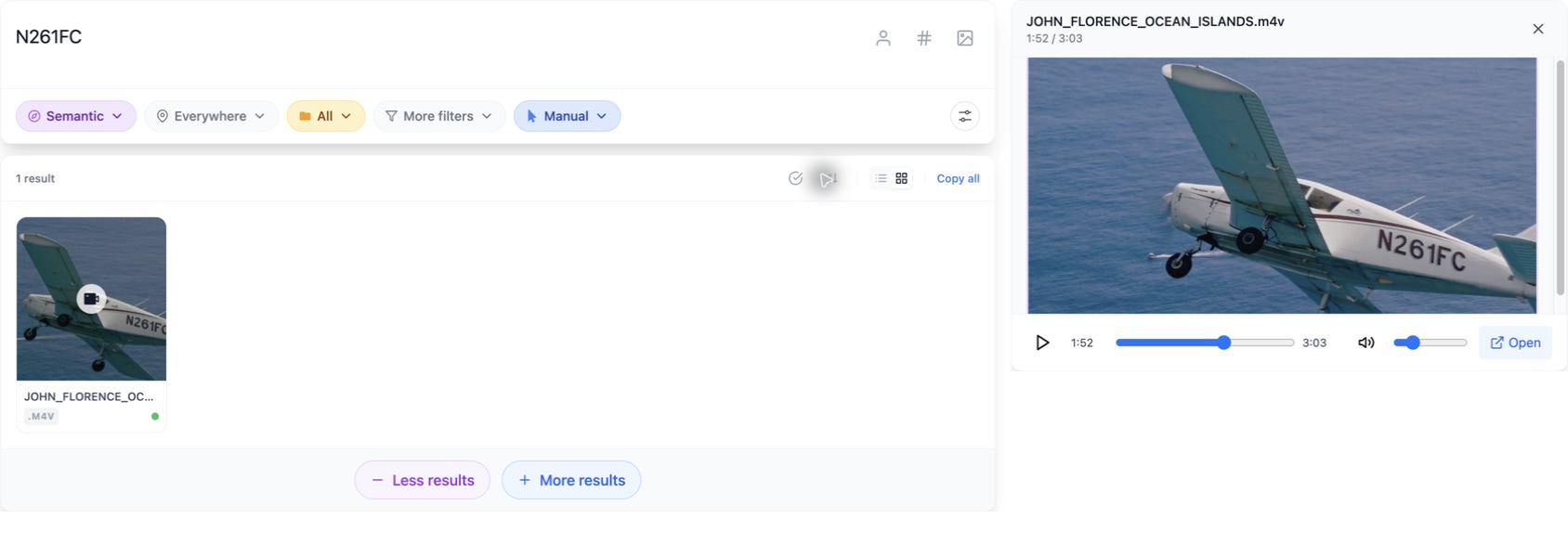
This example finds JOHN_FLORENCE_OCEAN_ISLANDS.m4v. When following along, use a detail visible in one of your own indexed videos, such as words on a sign or a slide. Searching N261FC will only reproduce this result if you have the same video indexed.
Everywhere means across the sources available to Fenn, so the folder still needs to have been added and indexed.
If results appear while you’re typing, Search as you type is enabled in Settings → General. Otherwise, press Return to run the search.
See the matching moment
Section titled “See the matching moment”Switch to List View using the button above the results. Under the video, Fenn shows matching Timestamps. Click a timestamp to preview that moment.
In this example, click 1:52. The preview opens on the plane, with N261FC clearly written on its side. You’ve found both the video and the moment you were looking for.
Use the preview’s play button to continue watching, or Open to open the video in its app.
The same approach works with other content: try elephant with Images, or planning a summer trip with PDF or Word. There’s no need to type “a photo of” or “a document about”. See Choose a search mode for more examples.
If your file doesn’t appear
Section titled “If your file doesn’t appear”Check these in order:
- Is its folder included? Look in Sources → Folders → Index and make sure the file is inside one of those folders.
- Is its file type selected? Check Sources → File Types, including the extension, such as
.pdfor.docx. - Has indexing finished? If you added the file after the last run, use Run Index → Index new files and wait for completion.
- Are the mode and filters right? Choose Semantic, set Everywhere and All, and clear extra filters before trying again. If Semantic is missing, check the All Files indexing setting under Settings → Search & AI.
For text visible in a video, start with something clear and readable in the image. Small, blurry, or briefly visible text may not be found.
Still missing? Follow Why isn’t my file showing up? for more checks.
What to do next
Section titled “What to do next”- Choose a search mode for the kind of information you remember.